Test Profiles provide a way for you to set test conditions for your Site that your customers may experience. By configuring Test Profiles, you can emulate popular devices (like iPhones, iPads and Samsung Galaxy phones), throttle network connectivity, set custom headers or cookies, block ads or JavaScript.
Whether you’re looking to replicate the experience of a mobile user on a slow connection or evaluate the impact of third-party scripts, Test Profiles offer the flexibility to tailor your testing environment to your requirements.
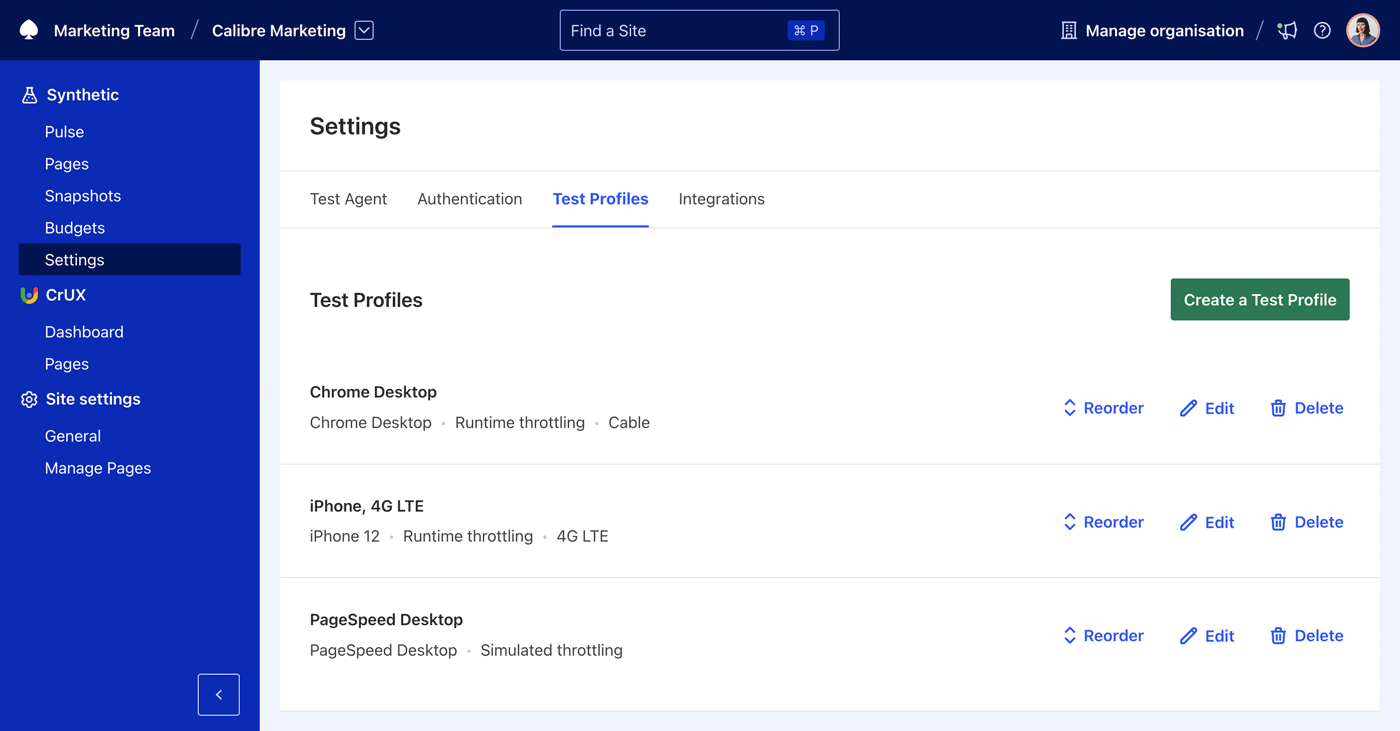
Test Profiles can be found for each site in Calibre by navigating to Site → Synthetic → Settings → Test Profiles.
Throttling types and settings#
When running performance tests, it’s crucial to apply network settings that accurately reflect the conditions your users may face. Calibre provides two primary modes of throttling: Simulated Throttling and Runtime Throttling.
Simulated throttling#
Simulated Throttling is used by PageSpeed Desktop and PageSpeed Mobile device presets, where device and network conditions are emulated after the test has completed. This approach is used by Google Lighthouse and services that rely on Lighthouse, such as Google PageSpeed Insights or performance tests run directly in Google Chrome browser.
The following test information is not available under Simulated throttling:
- Request table: request timings
- Render timeline: screenshot timings
Runtime throttling#
Runtime Throttling applies network throttling during each test, providing a more realistic simulation of user conditions. Runtime throttling is used for all Calibre Test Profiles, except for PageSpeed device presets.
Default Test Profiles#
When you monitor a new Site, Calibre creates two default Test Profiles automatically:
| Name | Device Emulation | Connection Speed |
|---|---|---|
| PageSpeed Desktop - A desktop class device with simulated network throttling. | Unthrottled CPU. Viewport: 1350x940 px, DPR 1. | PageSpeed Desktop |
| PageSpeed Mobile - A mobile class device with simulated network throttling. | Moto G Power. Viewport: 412x823 px, DPR 1.75. | PageSpeed Mobile |
Device presets#
Device presets are a set of predefined device configurations that include CPU speed, viewport dimensions, pixel ratio, and User-Agent. These presets are based on real-world devices and are used to emulate the experience of browsing your Site on a specific device.
We selected the devices below to reflect market trends in adoption and a diverse set of resolutions, processor capabilities and price ranges. You can use them to experiment different user scenarios.
| Name | Year of Release | Viewport | Single Core Score |
|---|---|---|---|
| Samsung Galaxy A12 | 2020 | 360x800 px | 149 |
| Samsung Galaxy Tab A7 | 2020 | 1428x857 px | 308 |
| Motorola Moto G Power | 2020 | 415x884 px | 311 |
| Oppo Reno 7 | 2022 | 360x662 px | 388 |
| iPhone SE | 2022 | 320x568 px | 535 |
| Samsung Galaxy A52s | 2021 | 412x915 px | 713 |
| iPad Pro (3rd gen) | 2021 | 834x1075 px | 1143 |
| iPhone 11 | 2019 | 414x896 px | 1311 |
| iPad (9th gen) | 2021 | 810x1010 px | 1326 |
| iPad mini (6th gen) | 2021 | 744x1133 px | 1564 |
| iPhone 12 | 2020 | 390x664 px | 1573 |
| iPad Air (5th gen) | 2022 | 820x1061 px | 1706 |
Discontinued device presets#
These devices are no longer sold (discontinued). You can still use them for testing, but they will be deprecated in the future. We recommend using devices from the Current Devices section.
| Name | Year of Release | Viewport | Single Core Score |
|---|---|---|---|
| Motorola Moto G4 | 2016 | 360x640 px | 112 |
| Galaxy S5 | 2014 | 360x640 px | 153 |
| Nexus 5X | 2015 | 412x732 px | 170 |
| Nexus 6P | 2015 | 412x732 px | 207 |
| iPhone 6 | 2014 | 375x667 px | 306 |
| iPhone 7 | 2016 | 375x667 px | 721 |
| iPhone 5 | 2012 | 320x568 px | 754 |
| iPad (4th gen) | 2012 | 768x1024 px | 807 |
| iPhone 8 | 2017 | 375x667 px | 909 |
| iPad Pro (1st gen) | 2016 | 1024x1366 px | 1116 |
Network connection speed#
Calibre limits the bandwidth available to Chrome browser using pre-configured network speed options that best reflect average global connectivity.
| Label | Latency | Downstream | Throttling method |
|---|---|---|---|
| PageSpeed Desktop | 40ms | 10.24 MB/s | Simulated throttling |
| PageSpeed Mobile | 150ms | 1.638 MB/s | Simulated throttling (Slow 4G) |
| No bandwidth throttling | - | - | N/A |
| Regular 2G | 300ms | 256 KB/s | Runtime throttling |
| Good 2G | 150ms | 460.80 KB/s | Runtime throttling |
| Slow 3G | 400ms | 320 KB/s | Runtime throttling |
| Regular 3G | 300ms | 768 KB/s | Runtime throttling |
| Good 3G | 150ms | 1.57 MB/s | Runtime throttling |
| Emerging markets 3G | 400ms | 3.2 MB/s | Runtime throttling |
| Regular 4G | 170ms | 12.19 MB/s | Runtime throttling |
| 4G LTE | 70ms | 24 MB/s | Runtime throttling |
| DSL | 30ms | 2.10 MB/s | Runtime throttling |
| WiFi | 10ms | 31.46 MB/s | Runtime throttling |
| Cable | 20ms | 40 MB/s | Runtime throttling |
Cookies#
Setting custom cookies can be helpful in a variety of scenarios. The most common implementations include:
- Authenticating Calibre to your web application.
- Turning off advertising to ease troubleshooting of developer-specific regressions.
- Testing against an A/B test or staff-shipped feature.
Headers#
Custom headers are useful for setting Authorisation headers for basic authentication or for triggering certain conditions for your Pages.
Blocking third party scripts#
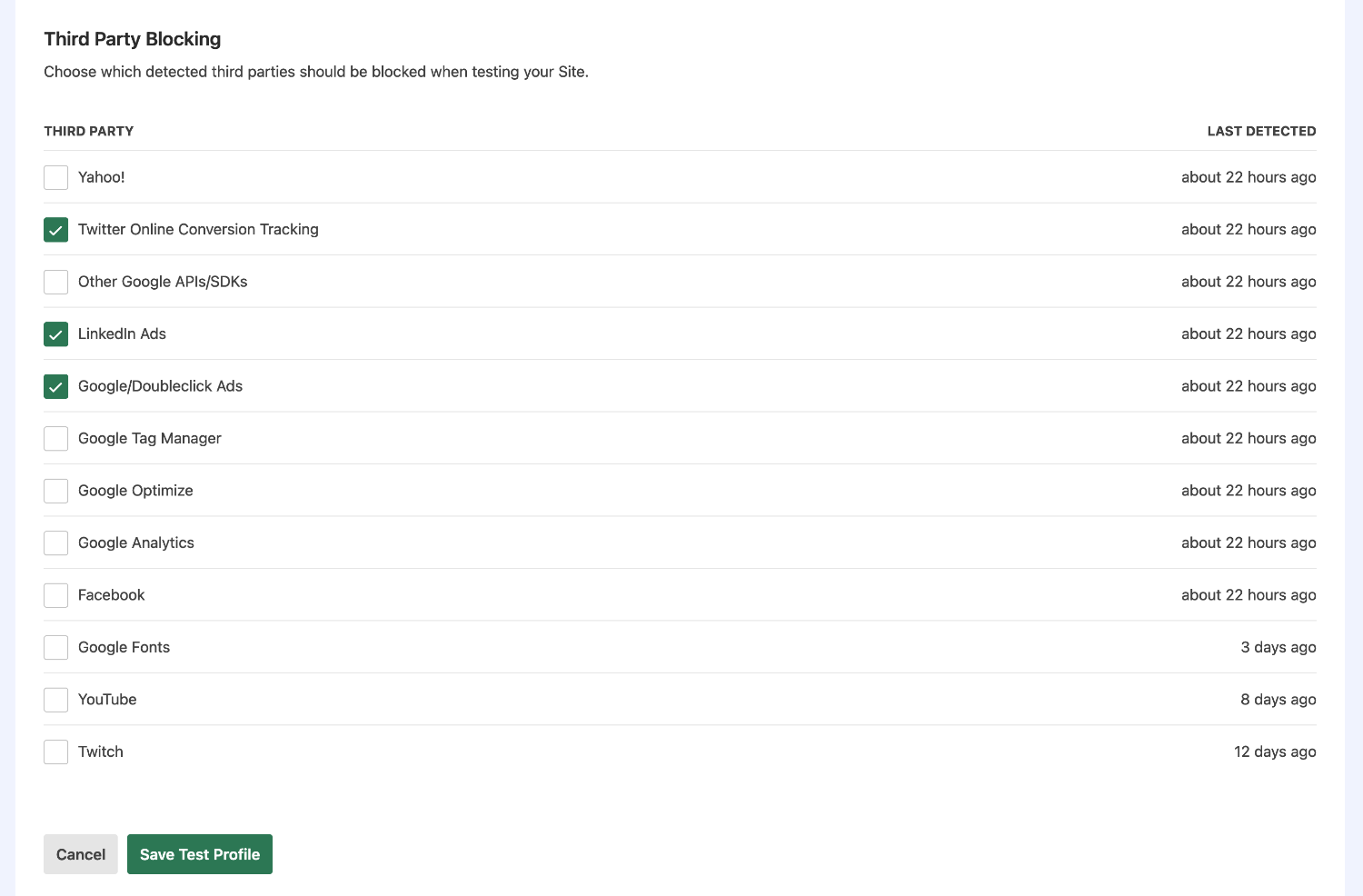
Calibre automatically detects third party providers during testing, based on a custom instance of Third Party Web dataset. When creating or editing a Test Profile, choose which providers you would like to the requests will be blocked when Snapshots run.
Each provider is listed with a Last Detected date. Some of the registered third parties can no longer be present on your Site but were included in the past. When blocking, make sure to include active third parties for reliable results.
We recommend experimenting with turning off:
- Chat widgets and communication tools.
- Scripts providing polyfills.
- Analytics software.
- Bug tracking scripts.
Blocking requests to nominated hostnames#
You can use Host Blocking to block requests to specified hostnames. Block rules are added one host per line, and include the ability to match wildcard subdomains (e.g.: *.example.com).
Blocking JavaScript#
Turning off JavaScript is an excellent strategy in discovering potential functionality and accessibility issues when JavaScript execution fails or is not reliable.
When creating or editing a Test Profile, select "Block JavaScript Requests" to ignore all external JavaScript requests. When JavaScript is blocked, all requests except inline script (<script>my script</script>) included on the page will be halted.